Set up and Add Widgets to your Home Screen
Track your daily spend, budget usage, or financial cycle overview right from your home screen.
What are moneeAI Widgets?
Widgets are live snapshots of your finances that sit on your iPhone home screen. At a glance you can see how much you've spent today or this week, how much of your budget remains, or an overview of your current financial cycle.
Requirements
- iPhone with iOS 14 or later
- moneeAI v1.2.0 or later
- Free — no Plus subscription required
How to set it up
Enter edit mode on your home screen
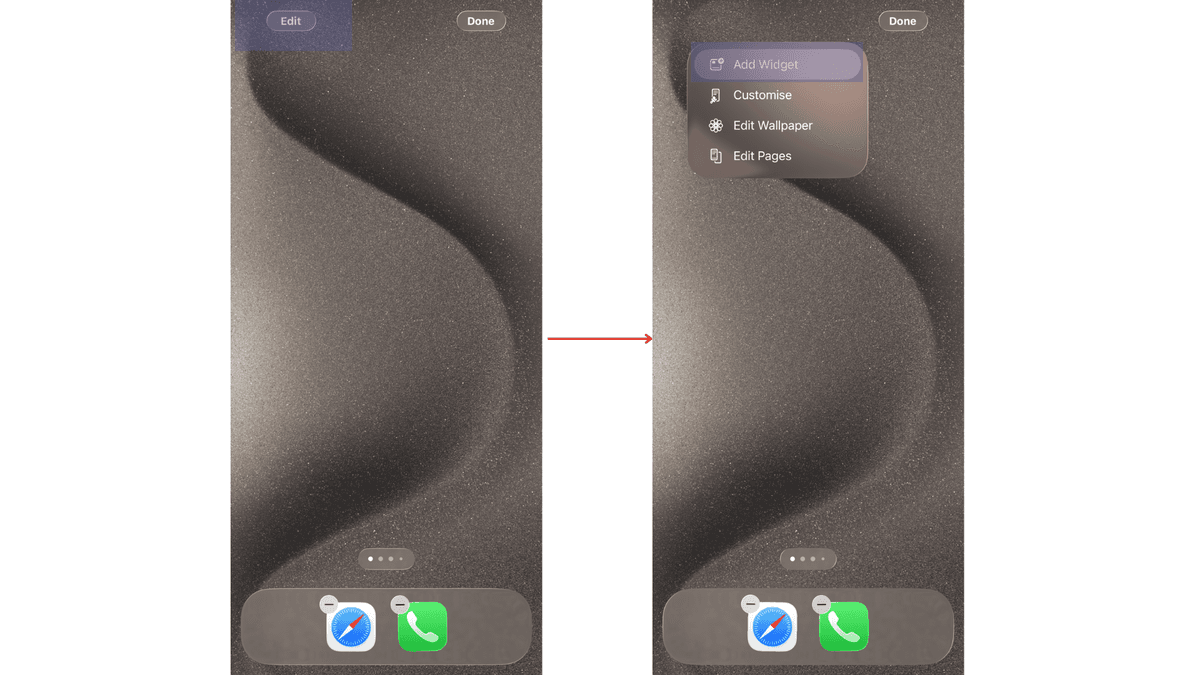
Press and hold an empty area of your iPhone home screen until the icons start to jiggle. Then tap Edit in the top-left corner and select Add Widget from the dropdown.
Search for moneeAI and choose your widget
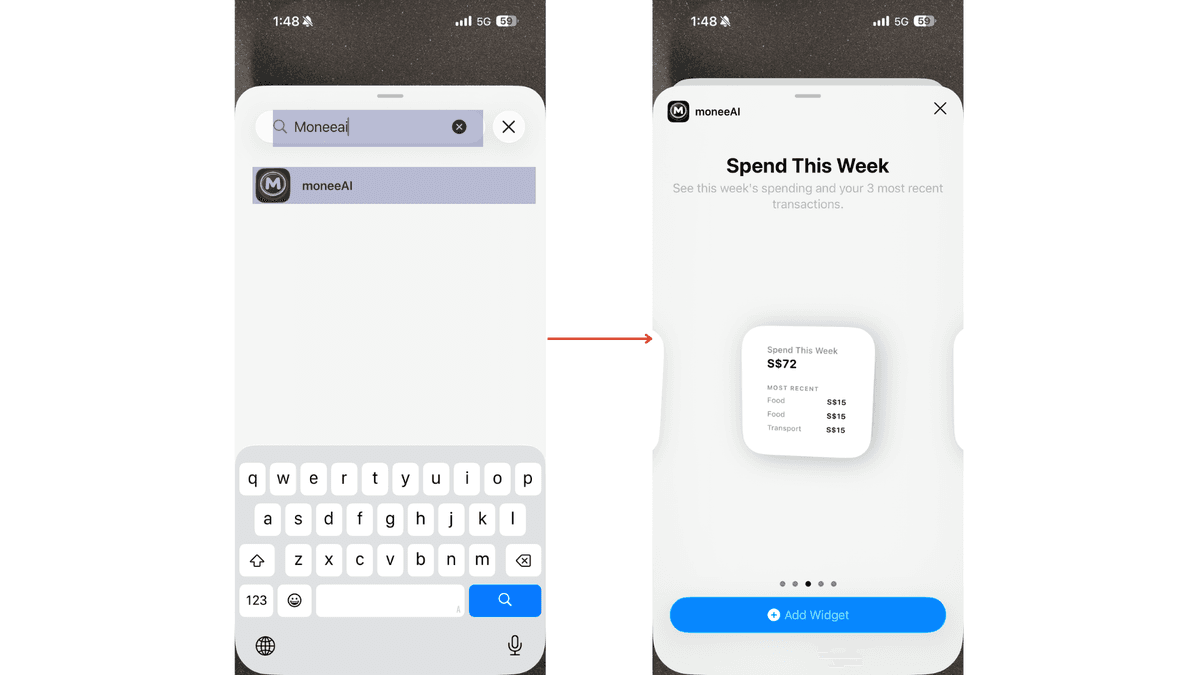
Type moneeAI in the widget search bar. Tap the moneeAI result, then swipe through the available widgets and select the one you want: daily spend, weekly spend, budget usage, or financial cycle overview.
Place the widget on your screen
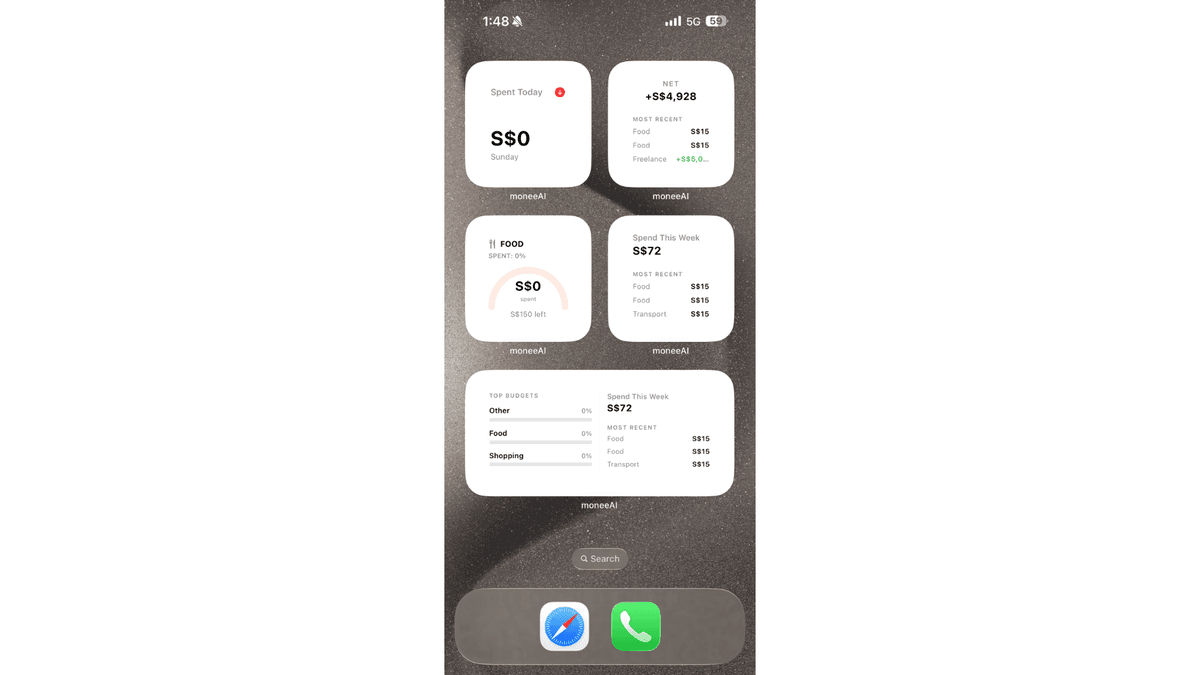
Tap Add Widget, then drag it to the position you want on your home screen. Tap Done in the top-right corner when you're happy with the placement.
Pro tip
You can add multiple moneeAI widgets. For example, one for daily spend and one for budget usage. Place them on separate home screen pages to keep your layout clean.
Ready to try it?
Download moneeAI